How to Manage Credentials
Credentials are securely stored authentication details that your agents and connectors use to access external services like databases, APIs, and SaaS tools. All credentials are encrypted with AES-256.
Viewing Your Credentials
Navigate to Settings > Credentials from the sidebar.
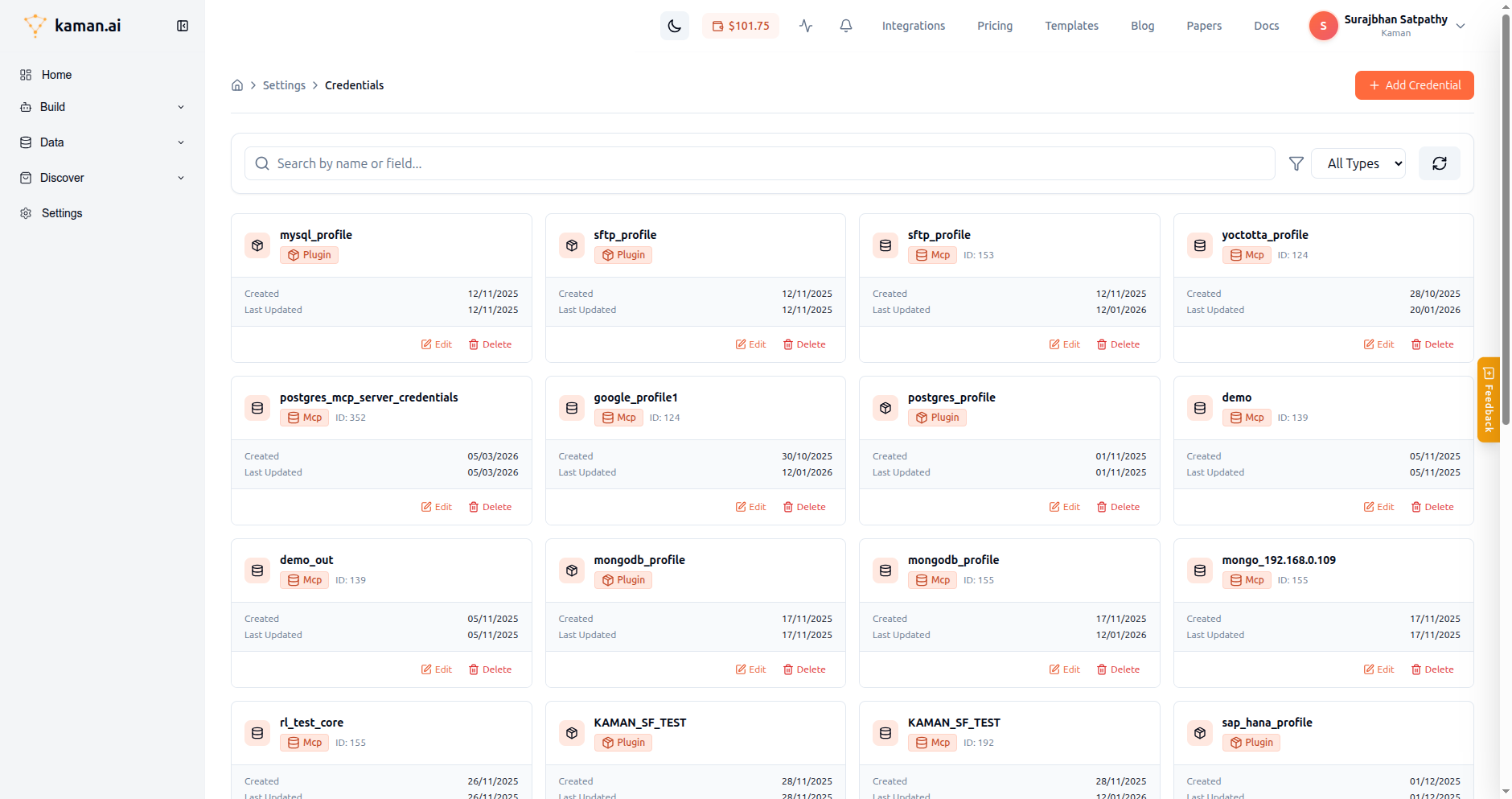
Each credential card shows:
- Profile Name — The name you gave this credential set
- Type Badge — Either MCP (for connectors) or Plugin (for tools)
- Resource ID — The linked MCP server or plugin
- Created / Last Updated dates
- Edit and Delete buttons
Use the search bar to find credentials by name, and the filter dropdown to show only MCP, Tool, or General credentials.
Creating a Credential
For MCP Connectors (e.g., PostgreSQL, Gmail, Stripe)
- Click + Add Credential (top right)
- In the modal, change Resource Type from "General" to MCP
- In the Select Resource field, search for your MCP (e.g., type "PostgreSQL")
- Click on the matching result in the dropdown
- The form will dynamically load the credential fields required by that MCP
- Fill in all required fields:
- For PostgreSQL: host, port, database, username, password
- For Gmail: OAuth flow (click authorize)
- For Stripe: API key
- For Discord: bot token, guild ID
- Set a Profile Name (auto-generated from the resource name, editable)
- Choose Access Scope:
- Personal — Only you can use this credential
- Team — Your team members can use it
- Organization — Everyone in your org can use it
- Click Save
For General Credentials (API keys, tokens)
- Click + Add Credential
- Keep Resource Type as General
- Enter a Field Name (e.g.,
api_key,access_token) - Enter the Value (the actual secret)
- Set a Profile Name
- Click Save
Credential Scopes
Credentials follow a priority system when multiple credentials exist with the same profile name:
| Priority | Scope | Who can use it |
|---|---|---|
| 1 (highest) | Personal | Only you |
| 2 | Team | All members of your team |
| 3 (lowest) | Organization | Everyone in your org |
When your agent uses a tool, Kaman automatically picks the highest-priority credential available.
Editing a Credential
- Find the credential card
- Click Edit
- Update the values
- Click Save
Note: Existing credential values are decrypted and pre-filled when editing.
Deleting a Credential
- Find the credential card
- Click Delete
- Type DELETE in the confirmation input
- Click confirm
Warning: Deleting a credential will break any connectors or tools that depend on it. Make sure nothing is using it first.
OAuth Credentials (Google, Microsoft, Salesforce)
For OAuth-based services:
- Select the MCP resource (e.g., "Google")
- Click the Authorize button that appears
- A browser popup will open for the OAuth consent screen
- Sign in and grant permissions
- The tokens are automatically stored and encrypted
- Token refresh happens automatically when tokens expire
Security
- All credential values are encrypted with AES-256 before storage
- Credentials are never returned in plaintext via API responses
- Credentials are never visible in logs
- Each credential is scoped to a user, team, or organization
- Cross-organization access is impossible — credentials are isolated per client